
Dynamics Explorer
Dynamics Explorer allows you to easily create and save views of all your important Dynamics master record data and provides real-time access to information in quick, easy queries that can be personalized and saved for future use. In addition, you can export information from Dynamics directly into Microsoft Word or Excel, eliminating extra steps and making you more productive.
With Dynamics Explorer you can instantly create queries to find customer, vendor, general ledger account, inventory, employee and salesperson records. The familiar interface makes it easy to create lists and locate information from anywhere in Dynamics. You can add, remove and rearrange columns the way you want.
Once you create a query, you can save it, print it, or share it with others. And queries can be imported into Microsoft Word or Excel with the click of a single button, making it a snap to update spreadsheets or create mailing lists for your sales and marketing efforts. Easy to learn and easy to use, the Dynamics Explorer puts the power of information at your fingertips and helps you work smarter and faster.
Dynamics Explorer highlights:
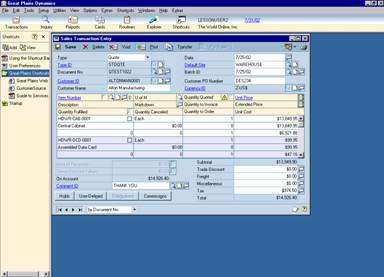
Available system-wide: Entering an order for a bicycle and need to find all cycling-related items? Explorer is at your fingertips, helping you pinpoint the exact information you’re looking for.
Lightning fast: Dynamics Explorer retrieves the information you want with lightning speed and surgical precision. You’ll save time every time you use Explorer to build specialized inquiries.
Super flexible: With Explorer you can sort customers by price level, vendors alphabetically with the telephone number as the second column-whatever’s important to you. You can review the information and instantly change the content or order of the query to match your needs.
 |
Go directly from Explorer to the
corresponding module window by simply clicking on the Go To button all
without ever leaving the Explorer window.
|
Easy access available system-wide
Explorer makes it easy to access information about:
Customers and prospects
Sales orders, sales transaction line items, and invoices
Receivables documents
Vendors and payables documents
Purchase orders and purchase order line items
Inventory items and quantities
Employees, applicants and payroll transactions
Accounts, summaries and transactions
Multidimensional Analysis codes
Fixed Assets
Build and save your favorites: Select search criteria quickly with “Smart” select functionality that helps you select the exact criteria you need to build your query. Then save queries as your favorites so you can quickly locate the specific information you need to do your job. These favorites can easily be refreshed so all new records will be instantly included in your query.
 |
Create and define a query for your specific need, save
it in your favorites folder and easily access it for future
use. |
Share the results: Increase team productivity by sharing queries with others. With Explorer, you can set security to make favorite views available to all companies in Dynamics, the company you are logged into, your user class or to you alone. In addition, the system administrator can grant or deny access to Explorer views to different users in the system on a per use or per class basis, ensuring your company’s employees will only be able to access the information you specify.
One click integration with Microsoft Word and Excel: Put the information from your Dynamics system to work by exporting inquiry results to Microsoft Excel or Word with a simple click of a button. Use Word and Excel for mail merges, commission studies, and other critical business functions.
Use solution templates: Creating export solution templates or macros is quick and easy. You can export information from Dynamics into Microsoft Word and Excel, and have the templates or macros display the information the way you want.
Compare data fields: You can compare data from two fields within Explorer to perform more sophisticated queries. In addition, you can search against data fields using “tokens” like today, yesterday, this week, last week, etc. instead of actual dates.
Resize the Explorer Window: Drag and drop the corners of the Explorer window so that it fits within your desktop the way you want it.
Here are some real-life ways Explorer can make your business more productive immediately:
· To target a mailing at all your customers in Wisconsin, use Explorer to create your list of Wisconsin customers. Import the information into Word with the click of a button, then use Word’s mail merge to send personalized letters to your customers. Use Explorer to save the list you created, and next month refresh the list to include all new Wisconsin customers you gained for your next mailing.
· If you typically work with several manufacturers, use the items view to find items available by manufacturer. Use Explorer to create and save queries for each manufacturer, making it easy to locate and reference the information you’re interested in, without searching through your entire inventory item by item.
· Find information quickly and accurately on your customer’s own terms, for example, use Explorer to search for sales transactions by customer purchase order number. Then drill down for sales transaction detail-all within a few seconds.
With Explorer you can print mailing labels with barcodes for vendors, customers and more without sorting through lists of records. Just use the search option to define your range of contacts, then export directly into Microsoft Word to format and print your labels.

CompuAll, Incorporated Quality Solutions Since 1985
10061 Talbert Avenue #200
Fountain Valley, California 92708 USA
Phone: (714) 964-2140 Fax: (714) 964-1491
For a demo or more information E-Mail us at info@compuall.net for more information.